Deploy Uptime Kuma in one click
Uptime monitoring and status pages, ready in minutes
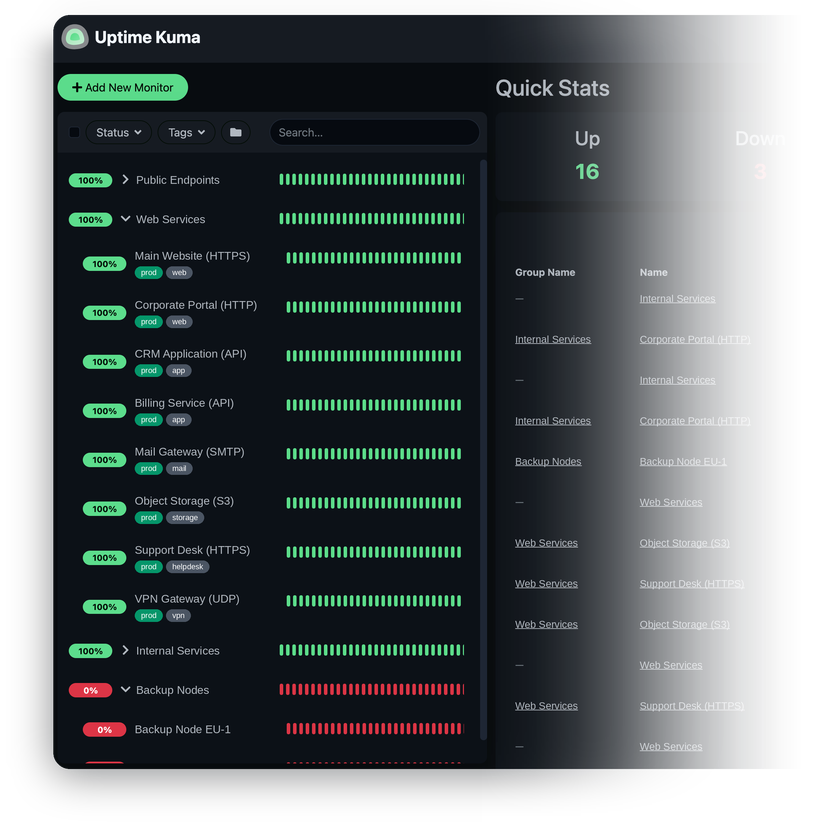
Uptime Kuma is the self-hosted answer to paid uptime monitoring services – it watches your websites, APIs, and services from the outside and tells you the moment one stops answering.
-

 Monitors websites, APIs, TCP ports
 -

 Alerts to Telegram, Slack, Discord
 -

 Status pages on your own domain
 -

 SSL certificate expiry alerts
 -

 Real-time reactive dashboard
 -

 Intervals down to 20 seconds

 Installs with your VPS

 Full root access

 Live in ~2 minutes

 Instant web access
Key features
Nothing to install on the targets. Uptime Kuma checks HTTP/HTTPS, keywords, JSON queries, TCP ports, ping, DNS records, and databases from the outside – exactly what your users experience.
Telegram, Slack, Discord, Gotify, ntfy, email, and generic webhooks ship as built-in providers – with customizable message templates for down and recovery alerts. One monitor can fire into as many channels as you need.
Publish live service health to customers or your team – multiple pages, grouped monitors, custom branding, and your own domain with a valid certificate.
Get warned before TLS certificates expire, not after – with configurable lead times and per-monitor alert rules.
Watch cron jobs, backups, and hosts behind NAT that can't be polled from outside. Create a Push monitor, add its ready-made URL as the last line of the job – and if the job ever fails to check in on time, the alert fires.
Schedule planned work – one-off, cron, or recurring – and affected monitors show "maintenance" instead of firing down alerts. For dashboards, a built-in Prometheus endpoint exposes live monitor state; lock it down with an API key from the settings.
System requirements
View All VPS Options
Get started in 4 easy steps
-
1
Select a VPS plan
Choose the virtual server resources and performance tiers that fit your project requirements.
-
2
Pick your application
Browse our marketplace during VPS setup and select the self-hosted software you want to deploy.
-
3
Complete the payment
Pay the standard virtual server invoice – the 1-click deployment tool itself is fully complimentary.
-
4
Complete and access
Your server provisions and automatically installs the software. Once the setup process finishes, your new environment is fully ready for you to connect and use.
Deployment details
Application
Uptime Kuma 2.x – current stable release
- Official Docker image (louislam/uptime-kuma:2)
- Dashboard, notification engine, and status pages running out of the box
Runtime and operating system
Docker Compose on Ubuntu 24.04 LTS – clean minimal install
- Container restarts automatically with the server
- Compose file on the host – inspect the setup anytime
- Full root access over SSH


Web access and SSL
Nginx reverse proxy
- Self-signed certificate enabled by default
- Built-in
setup-sslscript issues a free Let's Encrypt certificate


Software licensing
MIT License – open-source, no license fees
- No monitor limits, feature gates, or paid tiers in the version we deploy
- Full MIT license text
Why deploy on INTROSERV
-


NVMe storage
Every VPS runs on NVMe drives – fast I/O for databases, metrics, and busy workloads.
-


Locations in Europe and the US
Deploy close to your infrastructure and users – lower latency, regional compliance.
-


Unmetered traffic
No bandwidth caps and no overage bills – your monthly price stays predictable.
-


IPv4 and IPv6 included
A dedicated IPv4 address plus native IPv6 with every server.
-


24/7 human support
Engineers on duty around the clock – real answers, not ticket bots.
-


Scale anytime
Upgrade CPU, RAM, or storage as your workload grows – without migrating.
Terms and support boundaries
Infrastructure and support limits
Our company provides the Virtual Private Server infrastructure and the automation script for initial deployment. While we guarantee the availability and performance of your hardware and network, our technical support exclusively covers infrastructure-related issues – such as server connectivity, hardware stability, and billing. Assistance with application-specific configuration, software bugs, or user management is the responsibility of the server administrator or software maintainers.
Software licensing and compliance
All marketplace tools deploy standard versions of third-party software products and are provided "as-is" with no modifications to their original code. While the core of many available applications is open-source, using proprietary features or advanced enterprise tiers in production environments may be subject to the vendor's specific licensing terms. Users must manage and acquire any required commercial subscriptions directly from the software developers.
FAQ
-
Do I need a license to run Uptime Kuma?
No. Uptime Kuma is fully open-source under the MIT License – no paid tiers, monitor limits, or feature restrictions, and no per-check pricing like hosted alternatives. You only pay the standard virtual server invoice.
-
How do I log in after deployment?
Once the server is provisioned, you'll find the web interface URL in your INTROSERV panel. Open it over HTTPS – on the first visit, Uptime Kuma walks you through a short setup: pick SQLite as the database (it needs nothing extra and is the right choice for a single-server install), then create your administrator account. You set the username and password yourself, so no credentials are ever generated or stored for you.
-
How do I get a valid SSL certificate?
The server ships with a self-signed certificate enabled by default. To issue a free Let's Encrypt certificate, connect over SSH and run the
setup-sslscript – with no arguments it uses the server's reverse DNS name, or pass your own domain once it points at the server. One command, certbot handles the rest, renewal included. -
Do I need to install anything on the hosts I monitor?
No. Uptime Kuma checks your services the way a visitor would – over HTTP, TCP, ping, or DNS – so nothing runs on the target at all. For cron jobs, backups, or machines behind NAT, create a Push monitor and call its URL at the end of the job: as long as the job checks in on schedule, all is quiet; a missed check-in triggers the alert.
-
Can I run a public status page on my own domain?
Yes. Create as many status pages as you need, group monitors, add your logo and description, then point a DNS record at the server and set the domain in the status page settings. The setup-ssl script covers that domain with a valid certificate.
-
Can I migrate my existing Uptime Kuma installation?
Yes. Stop Uptime Kuma on both sides, copy the contents of your current data directory into the data volume on the new server, and start the container again – database, uploads, and settings all live in that one directory. Coming from a 1.x installation, the first start upgrades the database to the 2.x format automatically – just keep a backup of the original data until you've confirmed everything is in place.
-
How are updates handled?
You decide when to update – nothing changes behind your back. The image tag tracks the stable 2.x branch, so an update is a pull and a restart. If you're not sure where the compose file lives, run
docker compose ls– it lists the running project along with the full path to its config file. Switch to that directory, thendocker compose pullanddocker compose up -d. Back up the data volume first – it's a single directory copy. -
Can I use the same server for other tasks?
Technically yes – you get full root access and can install anything. In practice, keep your monitoring on its own VPS and outside the infrastructure it watches: a monitor that shares a server with your application goes down at the exact moment you need the alert.