


How to Configure Access to a Containerized Environment Using Nginx Proxy Manager on Linux
Introduction
In this tutorial, you configure secure and user-friendly access to containerized services using Nginx Proxy Manager. This approach simplifies reverse proxy management through a web interface instead of manual configuration. You will install Nginx Proxy Manager with Docker, set it up, and expose a containerized service through a domain.
Prerequisites
Target audience: Beginner system administrators
Estimated time: ~30 minutes
End goal: By the end of this tutorial, you will have a working Nginx Proxy Manager setup that routes external traffic to a containerized application.
System requirements:
- OS: Docker compatible Linux distribution
- Docker: 24.0.6 or later
- Docker Compose: v2
- Minimum 1 GB RAM and 10 GB disk space
- A domain name pointing to your server IP
- Open ports: 80, 81, 443
- Sudo privileges
Required knowledge:
- Basic Linux command line usage
- Basic understanding of Docker containers
Step 1: Understand Nginx Proxy Manager
Nginx Proxy Manager is a web-based tool that manages Nginx reverse proxy configurations. It allows you to route traffic to different services using domain names, enable SSL certificates, and manage access rules without editing configuration files manually.
Key features:
- Web UI for proxy management
- Automatic SSL via Let's Encrypt
- Access control and authentication
- Easy integration with Docker environments
Result: You understand how Nginx Proxy Manager simplifies exposing containerized services.
Step 2: Install Docker and Docker Compose
Install Docker using simple oneliner:
curl -sSL https://get.docker.com/ | CHANNEL=stable bash
Verify Docker installation:
docker --version
Verify Docker Compose:
docker compose version
Result: Docker and Docker Compose are installed and ready to use.
Step 3: Set Up Nginx Proxy Manager
Create a project directory:
mkdir ~/npm && cd ~/npm
Create a configuration file:
nano docker-compose.yml
Insert configuration content:
  version: "3"
services:
  app:
    image: jc21/nginx-proxy-manager:latest
    restart: always
    ports:
      - "80:80"
      - "81:81"
      - "443:443"
    volumes:
      - ./data:/data
      - ./letsencrypt:/etc/letsencrypt
Save the file and exit.
Start the service:
docker compose up -d
Result: Nginx Proxy Manager container is running and listening on required ports.
Step 4: Access the Web Interface

Open your browser and go to: http://<YOUR_IP_ADDRESS>:81
Default login credentials:
- Email:
[email protected] - Password:
changeme
Update your credentials when prompted.
Result: You can access and manage Nginx Proxy Manager through the web interface.
Step 5: Deploy a Test Container
Run a test web container:
docker run -d --name test-app -p 8080:80 nginx
Verify access by opening: http://<YOUR_IP_ADDRESS>:8080
Result: A test container is running and accessible locally.
Step 6: Create a Proxy Host
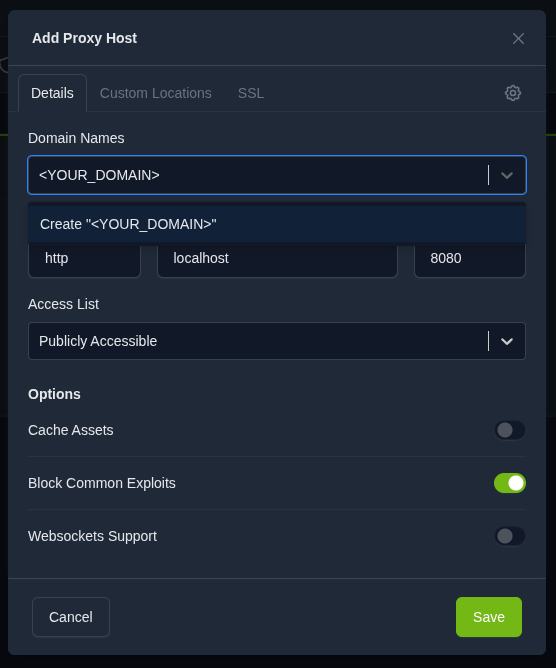
In the Nginx Proxy Manager interface:
- Click "Proxy Hosts"
- Click "Add Proxy Host"
- Enter domain:
<YOUR_DOMAIN> - Forward hostname or IP:
localhost - Forward port:
8080 - Enable "Block Common Exploits"
- Save the configuration
Result: Traffic from your domain is routed to the container.
Step 7: Enable SSL
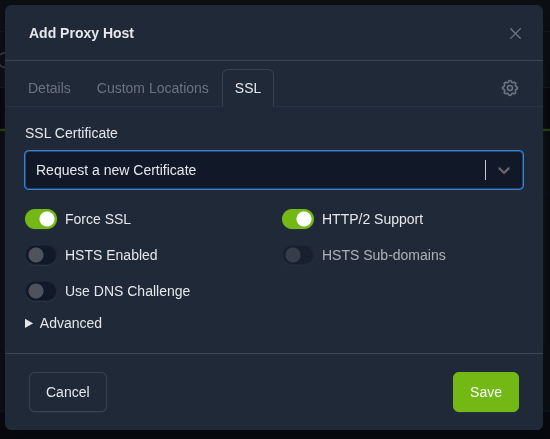
Edit the proxy host:
- Open SSL tab
- Select Request a new SSL Certificate
- Enable Force SSL
- Enable HTTP/2 Support
- Enter your email and accept terms
- Save changes
SSL requires correct DNS records pointing your domain to your server.
Result: HTTPS is enabled and secured with a valid certificate.
Verification
Open your domain: https://<YOUR_DOMAIN>
Expected results:
- The Nginx test page loads
- Browser shows a valid SSL certificate
- No security warnings appear
Check running containers:
docker ps
Result: The reverse proxy works correctly and routes traffic securely.
Reverting Changes
Stop services:
docker compose down
Remove test container:
docker rm -f test-app
Delete project files:
rm -rf ~/npm
Important: This removes all configurations and SSL certificates.
Result: All changes are reverted and the system is clean.
Troubleshooting
Issue: Cannot access web interface
Solution: Ensure port 81 is open and not used by another service
Issue: SSL certificate generation fails
Solution: Verify DNS configuration points to your server
Issue: Proxy host does not work
Solution: Check container status with docker ps and logs with docker logs <CONTAINER_ID>
Result: Common issues are identified and resolved.
Conclusion and Next Steps
You installed and configured Nginx Proxy Manager using Docker and exposed a containerized service with a domain and SSL. This setup provides a simple and scalable way to manage multiple services.
Next steps:
- Add additional services behind different domains
- Configure access control lists
- Explore advanced proxy and security settings


