

Database Backup: PostgreSQL, MySQL, rsync, rclone, CloudBox
Database backup is one of the most important procedures to ensure the security and reliability of websites and applications. Data loss can occur for many reasons: server failure, administrator error, update issues, malware, or simply human error. Regular backups allow you to quickly restore your project without data loss.
This guide explains how to back up PostgreSQL and MySQL databases, how to store backups on a remote Linux server using rsync or scp, and how to upload them to cloud storage using rclone.
PostgreSQL Backup
PostgreSQL provides the standard utility pg_dump, which allows creating a full database copy as an SQL file.
Example of creating a backup:
pg_dump -U myuser -h localhost mydatabase > /backup/mydatabase_$(date +%F).sql
Explanation of parameters:
- -U myuser — database username;
- -h localhost — server address (can be omitted if local);
- mydatabase — database name;
- /backup/... — destination path;
- $(date +%F) — adds the current date to the filename.
To save space, compress the backup immediately:
pg_dump -U myuser mydatabase | gzip > /backup/mydatabase_$(date +%F).sql.gz
To back up all databases on the server:
pg_dumpall -U myuser | gzip > /backup/postgres_all_$(date +%F).sql.gz
MySQL Backup
For MySQL and MariaDB, use the mysqldump utility.
Example of a single database backup:
mysqldump -u myuser -p mydatabase > /backup/mydatabase_$(date +%F).sql
When you run this command, the system will ask for the user password.
To back up all databases:
mysqldump -u myuser -p --all-databases | gzip > /backup/mysql_all_$(date +%F).sql.gz
To include stored procedures and triggers, add the options --routines --triggers.
Backup to CloudBox
CloudBox from INTROSERV is a cloud storage solution supporting multiple connection protocols (including rsync, scp, rsync over SSH, WebDAV). The ease of use of CloudBox significantly simplifies data upload, management, and retrieval tasks.
You can use it as a remote location for storing your database backups. Below are setup details and script examples.
Step 1. Getting Access to CloudBox
Order one of the available CloudBox plans on our website — https://introserv.com/solutions/cloudbox/
After payment, the service becomes available within minutes. After service activation, you will receive connection details:
- server address (box$$$$$.introserv.cloud)
- username (box$$$$$) and password
Step 2. Connection and Synchronization Using rsync or scp
Using rsync (recommended):
rsync -avz -e "ssh -p 22" /backup/ user@cloudbox-server:/path_to_cloudbackups/
Where:
- user — CloudBox username;
- cloudbox-server — connection address;
- /path_to_cloudbackups/ — path on CloudBox.
For automated operation, it's advisable to set up SSH keys.
1) Generate a public key:
ssh-keygen -t rsa
2) Copy the contents of the created public key file, e.g., /root/.ssh/id_rsa.pub to clipboard.
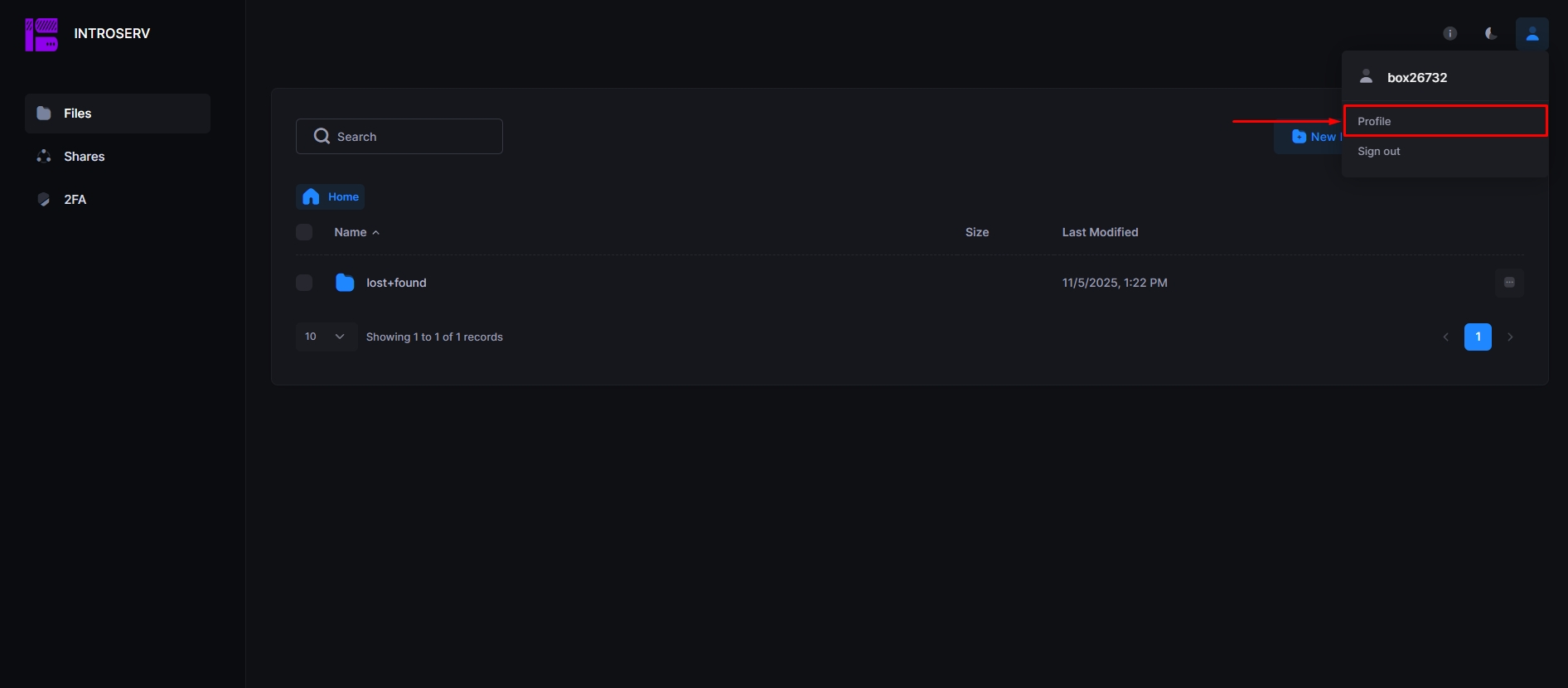
3) Go to the "Profile" section (hover over the user icon in the top right), add the key contents to the "Public keys" field and save the settings.
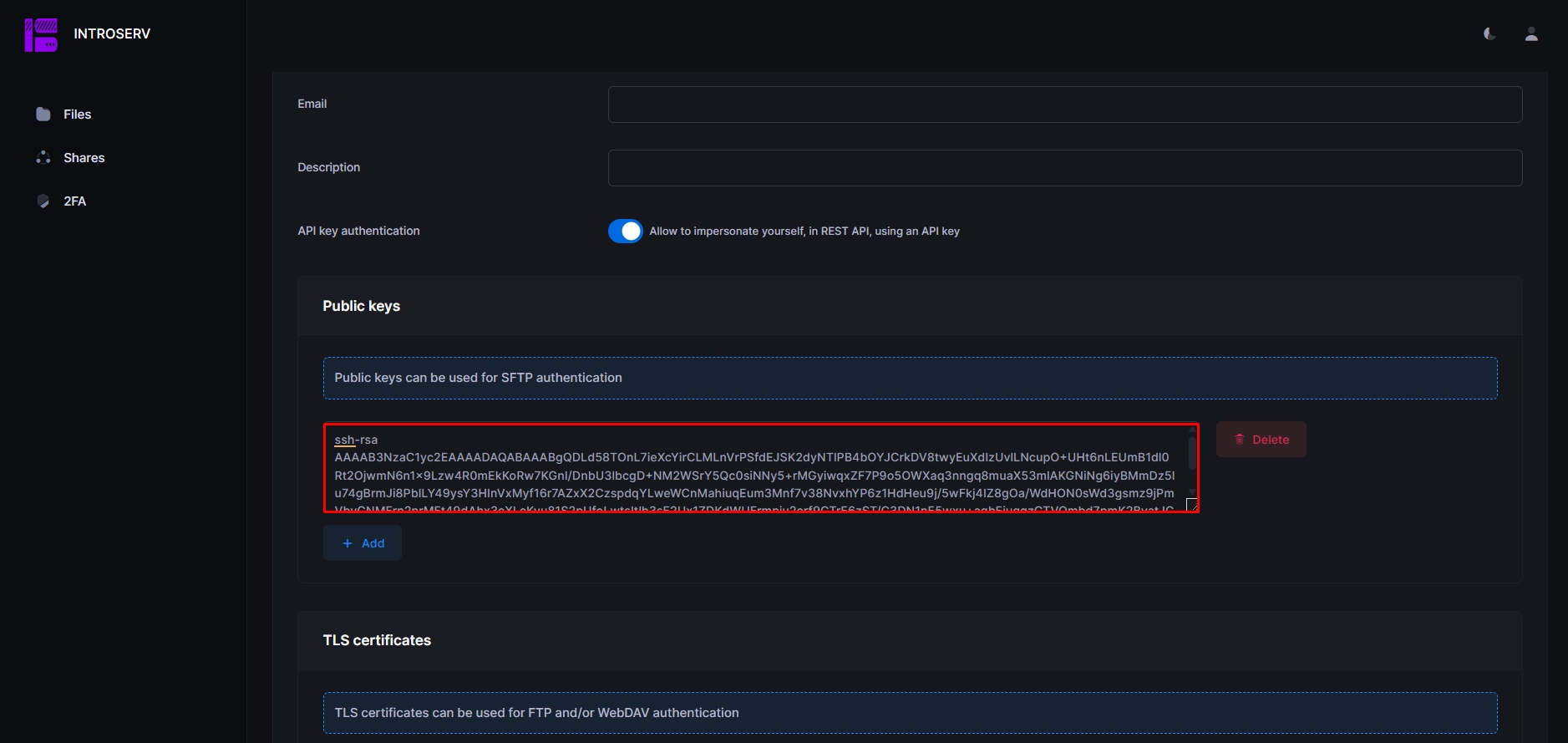
After this, rsync will work without password prompts, which is convenient for cron jobs.
Alternative — scp:
scp /backup/mysql_mydatabase.sql.gz user@cloudbox-server:/path_to_cloudbackups/
Step 3. Connection and Synchronization Using rclone
If you want to use rclone for interacting with CloudBox, configure it as follows.
1) Install rclone:
sudo apt install rclone
2) Start configuration:
rclone config
During setup select:
- n — to create a new remote;
- name, e.g.,
cloudbox; - storage type — choose
sftporssh; - enter server address in format
box$$$$$.introserv.cloud, username in formatbox$$$$$, port (SSH — default 22), directory path; - perform authorization (if required).
Test the connection:
rclone ls cloudbox:/path_to_cloudbackups/
Copy backup data:
rclone copy /backup/ cloudbox:/db-backups/ --progress
Synchronize with deletion of files missing locally:
rclone sync /backup/ cloudbox:/db-backups/ --progress
If needed — encrypt files before transfer:
rclone copy /backup/ cloudbox:/db-backups/ --progress --crypt
Step 4. Automation Script Example with CloudBox
Create script /usr/local/bin/db_backup_cloudbox.sh:
  #!/bin/bash
DATE=$(date +%F)
BACKUP_DIR="/backup/$DATE"
mkdir -p $BACKUP_DIR

# PostgreSQL
pg_dump -U myuser mydatabase | gzip > $BACKUP_DIR/postgres_mydatabase.sql.gz

# MySQL
mysqldump -u myuser -p mydatabase | gzip > $BACKUP_DIR/mysql_mydatabase.sql.gz

# Upload to CloudBox
rsync -avz -e "ssh -p 22" $BACKUP_DIR/ user@cloudbox-server:/path_to_cloudbackups/$DATE/

# Upload to CloudBox (rclone option, uncomment if used)
# rclone copy $BACKUP_DIR/ cloudbox:/db-backups/$DATE/ --progress

# Remove backups older than 7 days
find /backup/ -type f -mtime +7 -delete
Then add a cron job (the script runs daily at 2:00 AM):
0 2 * * * /usr/local/bin/db_backup_cloudbox.sh
Important considerations:
- Ensure the connection to CloudBox is stable and bandwidth is sufficient.
- Set up monitoring: verify that files are actually being copied.
- Periodically test restoration from CloudBox backups.
- When using confidential data — consider encrypting backups.
Copying to a Remote Linux Server via SSH
If you want to store backups not only locally but also on another server, use rsync or scp.
Using rsync (recommended, as it copies only changes):
rsync -avz -e "ssh -p 22" /backup/ [email protected]:/remote_backups/
Parameter explanation:
- user — username on the remote server;
- remote.server — IP address or domain name of the remote server;
- /remote_backups/ — path for storing backups.
To work without entering a password, configure SSH keys.
Generate SSH keys:
ssh-keygen -t rsa
Copy key to remote server:
ssh-copy-id [email protected]
After this, rsync will work without password prompts, which is convenient for cron jobs.
Alternative — using scp:
scp /backup/mysql_mydb.sql.gz [email protected]:/remote_backups/
Copying to Cloud Storage via rclone
If you need to store backups in the cloud (Google Drive, Dropbox, Amazon S3, etc.), use rclone — a universal tool for synchronizing data with various cloud services.
Installation:
sudo apt install rclone
Configuration:
rclone config
Follow the interactive setup steps:
- Select n to create a new connection;
- Enter a name, e.g.
remote; - Select the storage type (e.g.
s3,drive,dropbox); - Enter access keys or authorize via browser.
Check the connection:
rclone ls remote:path
Example of uploading backups to the cloud:
rclone copy /backup/ remote:db-backups/ --progress
Synchronization command (removes files missing locally):
rclone sync /backup/ remote:db-backups/ --progress
You can also encrypt files before uploading:
rclone copy /backup/ remote:db-backups/ --progress --crypt
Security and Control
- Store backups in at least two locations — locally and remotely.
- Check regularly that backups are created and uploaded successfully.
- Perform test restores at least once a month.
- Encrypt files containing sensitive data if you use public clouds:
gpg -c /backup/mysql_mydatabase.sql.gz
- Ensure proper file permissions for
/backupand secure your database credentials.
Restoring from Backup
PostgreSQL:
gunzip < backup.sql.gz | psql -U myuser -d mydatabase
MySQL:
gunzip < backup.sql.gz | mysql -u myuser -p mydatabase
Conclusion
Backing up PostgreSQL and MySQL databases is a simple yet critically important procedure. Even the most reliable infrastructure cannot protect you from human error or technical failure. The best strategy is regular automated backups stored on at least one external server and in the cloud, with periodic recovery testing.
By using a combination of pg_dump, mysqldump, rsync, rclone, and cron, you can build a reliable, fully automated backup system without any paid third-party software. This approach is easy to implement and suitable for all Linux systems.