Backups are now available for INTROSERV VPS
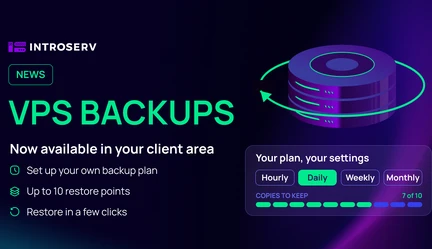
You can now back up your VPS from the client area. The new add-on saves a full copy of the VPS system disk on a schedule or on demand. You set up the backup plan yourself: choose how often to back up and how many copies to keep, and change it at any time. You can restore the server in a few clicks.
Before a system update, a new deployment or a config change, you can create a backup of your VPS. If something goes wrong, you can restore the server to the saved state. Your VPS keeps running while the backup is created, so your sites and services stay online.
What the add-on includes
- Automatic backups every hour, day, week or month.
- Up to 10 restore points per VPS.
- Up to 5 manual backups in 24 hours.
- Restore to any saved point from the client area.
How restore points are stored
Each VPS stores up to 10 restore points. When the limit is reached, each new backup replaces the oldest one. The schedule sets how far back you can go. With a daily plan, 10 points cover the last 10 days. With a weekly plan, they cover the last 10 weeks.
Manual backups count toward the same limit of 10 restore points. They become available once your backup plan is active.
How restore works
You choose a restore point in the client area and confirm the restore. During the restore, the VPS is turned off and its system disk is overwritten with the selected copy. Data changed after that backup is lost.
Servers with databases
You can back up a VPS with a running database. MySQL and MariaDB with InnoDB, and PostgreSQL, recover from their transaction logs on startup. For critical databases, we recommend a scheduled dump shortly before the backup.
If you cancel the plan
If you delete a backup plan, existing restore points stay in storage for 6 calendar days. During this time you can restore the server or turn the plan back on. After 6 days, the restore points are deleted permanently.
Where to turn it on
- Log in to your client area.
- Open Order management → VPS backup.
- Click Create automatic backup, choose how often to back up and how many copies to keep.
- Pay the invoice. Your backup plan starts right after payment.
Want to know more?
The documentation explains how rotation works, how to restore your VPS and how to get a reliable copy of a server with a running database.
Need a VPS?
Choose a configuration in one of our locations and add backups when you order.
Subscribe to news